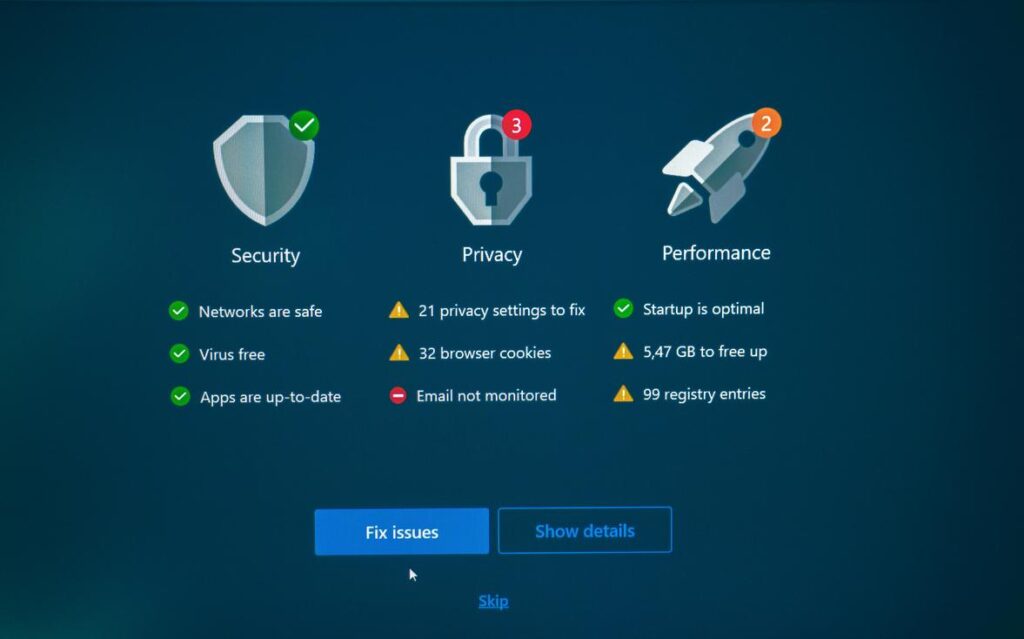
If you’re searching for a clear, actionable pc game optimization checklist, you’re likely tired of lag spikes, frame drops, and underwhelming performance holding back your gameplay. Whether you’re grinding competitive ranked matches or exploring massive open worlds, smooth performance isn’t optional—it’s essential.
This article is built to give you exactly what you need: a practical, step-by-step optimization checklist designed for real gamers who want measurable results. We break down system settings, in-game tweaks, hardware considerations, and advanced performance adjustments so you can eliminate bottlenecks and maximize FPS without guesswork.
Our recommendations are grounded in hands-on testing across competitive multiplayer titles and performance-heavy AAA games, along with analysis of current esports optimization standards. Instead of generic advice, you’ll get focused strategies that align with modern gaming demands.
By the end, you’ll have a streamlined checklist you can apply immediately to boost stability, responsiveness, and overall competitive performance.
Phase 1: The Low-Hanging Fruit (Essential Software & Settings)
Before you touch in-game sliders or chase ultra-secret tweaks from Reddit, handle the basics. In my opinion, this is the real pc game optimization checklist most players skip—and then wonder why their frames stutter.
Update Your Graphics Drivers
This is non-negotiable. Your GPU driver is the software that lets your graphics card talk to Windows and your games. Outdated drivers can cause crashes, low FPS, or visual glitches (yes, even on high-end rigs).
- Nvidia: Open GeForce Experience > Drivers > Download > choose Custom Install > check Perform a clean installation.
- AMD: Open AMD Software: Adrenalin Edition > Check for Updates > choose clean install if available.
A clean install removes old driver remnants that can cause conflicts. Pro tip: update drivers before major game launches—studios often coordinate optimizations with Nvidia and AMD (Nvidia Release Notes, AMD Driver Support).
Enable Game Mode in Windows
Game Mode prioritizes system resources for gaming (Microsoft Support).
Go to: Settings > Gaming > Game Mode > Toggle On.
Some argue it does nothing. I’ve personally seen smoother frame pacing on mid-range systems.
Optimize Your Power Plan
Your CPU can throttle itself to save energy. Switch to Control Panel > Power Options > High Performance (or Ultimate Performance if available). I always enable this on desktops—no reason to let performance nap mid-match.
Disable Startup Programs
Press Ctrl + Shift + Esc > Startup tab > Disable non-essentials. If you don’t recognize it and don’t need it, disable it.
Close Background Applications
Shut down Chrome (RAM hog), overlays, launchers, and recording tools. Even Discord overlays can cost frames (especially in competitive shooters). Every resource counts.
Phase 2: System-Level Tuning (OS & Driver Control Panel)
Once your in-game settings are dialed in, it’s time to optimize the layer most players ignore: your operating system and GPU driver panel. Think of this as the control room behind the stage—small switches, big impact.
Nvidia Control Panel / AMD Radeon Software
Focus on three high-impact settings:
- Power Management Mode → Prefer Maximum Performance: Prevents your GPU from downclocking during gameplay, ensuring consistent frame rates instead of sudden dips.
- Texture Filtering – Quality → High Performance: Reduces filtering precision slightly to gain extra FPS (barely noticeable visually, very noticeable competitively).
- Low Latency Mode → On or Ultra: Limits queued frames between CPU and GPU, reducing input lag—crucial in fast shooters where milliseconds matter.
Some argue default driver settings are “balanced enough.” That’s fair for casual play. But competitive environments reward consistency, and these tweaks prioritize performance over power savings.
Disable Visual Effects in Windows
Go to System > Advanced system settings > Performance > Adjust the appearance and performance of Windows. Select “Adjust for best performance” or manually disable animations and transparency. Fewer background effects mean more system resources for your game (and a snappier desktop overall).
Enable Hardware-Accelerated GPU Scheduling
Navigate to System > Display > Graphics settings and toggle it on. This allows the GPU to manage its own memory scheduling, which can reduce latency and improve frame pacing (Microsoft Support).
Defragment Your Hard Drive (HDD Only)
If you’re on an HDD, defragmenting reorganizes fragmented data for faster load times. Do not defrag SSDs—it’s unnecessary and can shorten lifespan (Microsoft Docs).
Add this phase to your pc game optimization checklist for measurable gains.
Phase 3: Mastering In-Game Settings
The FPS Killers You Should Tackle First
If your frames are tanking, start with the usual suspects: Shadows, Anti-Aliasing, Volumetric Effects/Fog, Ambient Occlusion, and Texture Quality. These settings demand heavy GPU processing (your graphics card doing complex lighting math in real time). Shadows and volumetrics simulate realistic light scatter—great for immersion, brutal for performance. Ambient occlusion adds subtle contact shadows, but it’s often an FPS hog for minimal visual gain.
Some players argue you should max everything because “modern GPUs can handle it.” Sometimes true—until big team fights or open-world hubs hit (and suddenly it’s a slideshow). Lowering these first gives the biggest performance return.
Resolution vs. Render Scale: Resolution is your monitor’s native pixel count. Render scale lowers the internal rendering resolution, then upscales it. Dropping render scale to 90% often boosts FPS with barely noticeable blur—far better than reducing native resolution.
VSync, G-Sync, FreeSync: VSync caps FPS to prevent screen tearing but adds input lag. Competitive players hate that delay (and they’re right). Turn VSync off in-game and enable G-Sync or FreeSync in your driver panel instead for smoother sync without as much latency (NVIDIA; AMD).
Finding your sweet spot? Change one setting at a time using an FPS counter. Treat it like a pc game optimization checklist. For deeper breakdowns, see graphics settings explained how to balance performance and quality.
Phase 4: Advanced Checks for Peak Performance
Check for Overheating: Thermal throttling happens when your CPU or GPU lowers speed to prevent overheating (yes, your rig will quietly sabotage performance to save itself). Use HWMonitor or MSI Afterburner to track temps during gameplay; anything consistently above 85–90°C deserves attention. Most guides stop at “check temps.” Go further—monitor clock speeds simultaneously to catch hidden drops.
Enable XMP/DOCP in BIOS: This unlocks your RAM’s advertised speed, often boosting CPU-bound titles by 5–15% (Intel, AMD data). It’s a forgotten hero in any pc game optimization checklist.
Consider a BIOS Update: New firmware can improve memory compatibility and system stability—especially after major GPU or RAM upgrades.
Level Up Your Performance Today
You came here to fix lag, boost FPS, and finally get smooth, competitive gameplay—and now you know exactly what’s holding you back. From graphics settings and driver updates to multiplayer mapping tweaks and hardware adjustments, you have the clarity needed to turn frustrating stutters into seamless performance.
Ignoring optimization is what keeps most players stuck with frame drops, input delay, and inconsistent results in crucial moments. That performance gap? It’s often not skill—it’s setup.
Take action now. Go through your pc game optimization checklist step by step and apply the changes immediately. If you’re serious about dominating your matches, stop leaving performance on the table.
Join thousands of competitive players who rely on proven optimization strategies to stay ahead. Don’t settle for avoidable lag—dial in your setup, sharpen your edge, and start playing at the level you know you’re capable of.