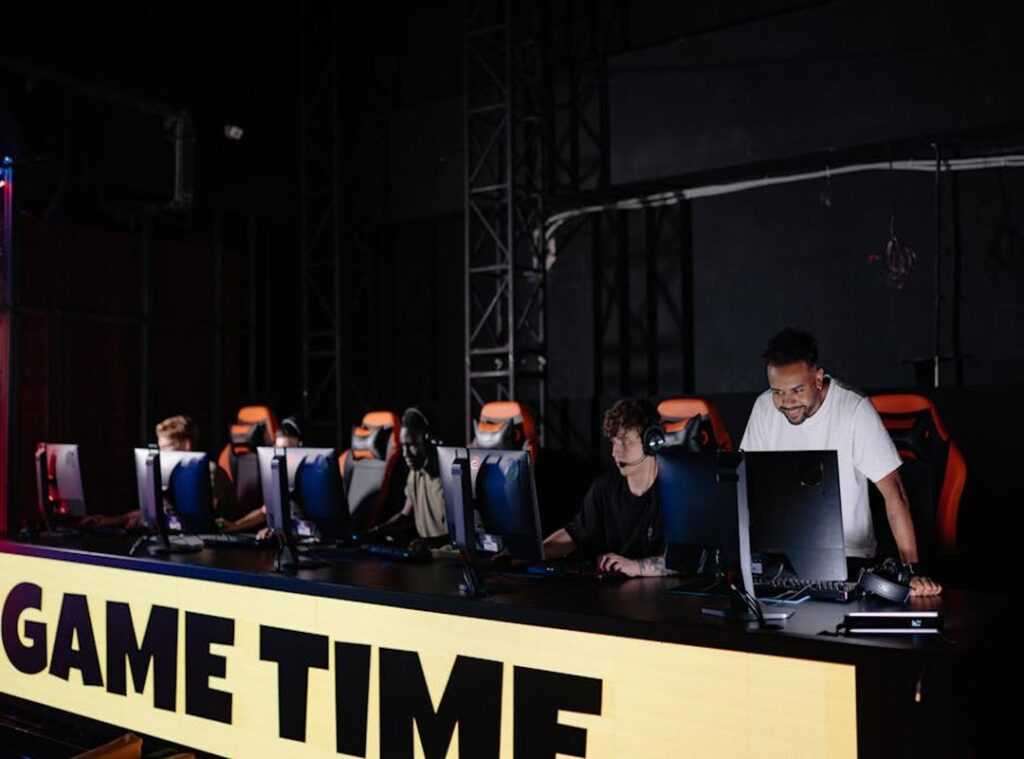

If you’re looking to sharpen your competitive edge, boost performance, and stay ahead of evolving esports trends, you’re in the right place. Whether you’re grinding ranked matches, refining multiplayer map control, or chasing pro-level consistency, success in modern gaming demands more than raw talent—it requires strategy, precision, and smart optimization.
This article is built to match that intent. We break down the hottest developments in competitive gaming, highlight practical strategies you can apply immediately, and explore how graphics settings optimization can directly impact frame rates, input response, and overall gameplay fluidity. From tactical decision-making to technical fine-tuning, every insight is designed to help you play smarter and perform better.
Our analysis draws from current esports trends, high-level gameplay patterns, and tested performance techniques used across competitive scenes. Instead of recycled tips, you’ll find focused, experience-backed guidance that aligns with how serious players actually compete today.
You have powerful hardware, yet lag and stuttering still sabotage your matches. The fix isn’t magic; it’s disciplined graphics settings optimization. Start with resolution: lowering it slightly can boost frame rates dramatically, though I admit the ideal number varies by title and engine. Next, trim shadows and post-processing effects; they look cinematic (think blockbuster trailers) but quietly tax your GPU. Some players insist max settings equal skill, yet responsiveness often wins firefights. I can’t promise one-size-fits-all results, because patches and drivers change performance. Still, test methodically, track FPS, and prioritize smooth, consistent gameplay over flashy extras every time you play.
The Foundation: System Prep and Driver Integrity
“Your GPU is only as good as its driver,” a tournament tech once told me. He wasn’t exaggerating. Updating your graphics drivers from NVIDIA, AMD, or Intel is non-negotiable for performance and stability. A clean install—which removes old driver files before installing new ones—prevents file conflicts that cause crashes or stutters (a common complaint on support forums). Most driver installers include a “Perform a clean installation” checkbox. Use it.
Next, optimize your OS. Windows updates often include security patches and performance tweaks (Microsoft confirms Game Mode reallocates system resources to active games). Enable Game Mode so your system prioritizes gameplay over background tasks.
“Eliminate the noise,” my teammate said before every scrim. Close:
- Web browsers with 20 tabs open
- Idle game launchers
- Streaming or update services
Freeing CPU and RAM ensures smoother gameplay and better graphics settings optimization.
The Big Four: Core Settings That Tank Your FPS
Resolution: The #1 Performance Factor
To delve deeper into optimizing your gaming experience, check out the Hmcdgamers Video Gaming Guide From Harmonicode, which offers valuable tips on fine-tuning your graphics settings for the perfect balance of performance and quality.
Resolution refers to the number of pixels your GPU renders—1080p (1920×1080), 1440p (2560×1440), 4K (3840×2160). More pixels = more GPU load. Jumping from 1080p to 4K isn’t a small step; it’s rendering four times as many pixels (NVIDIA confirms this scaling behavior in its developer docs).
Here’s the contrarian take: lowering resolution isn’t always the smartest move. Running below your monitor’s native resolution can cause blur and scaling artifacts. Instead, use upscaling tech like DLSS, FSR, or XeSS—they render at a lower internal resolution, then reconstruct the image intelligently. You keep clarity and gain FPS. That’s smarter than nuking resolution entirely.
Shadow Quality: The Silent FPS Killer
Shadows calculate light direction, softness, and dynamic movement—constantly. On Ultra, games render high-resolution shadow maps with long draw distances. On Low, shadows look blocky or may disappear altogether (hello, floating objects).
Most players assume shadows must be maxed for realism. Not true. The visual jump from High to Ultra is subtle, but the FPS hit is not.
Best balance for most GPUs:
- Medium: Strong performance boost, minimal visual loss
- High: Great visuals, manageable cost
Ultra is often bragging rights, not gameplay value.
Anti-Aliasing (AA): Smoothing Edges at a Cost
Anti-aliasing smooths jagged edges. Common types:
- FXAA: Lightweight, slightly blurry
- TAA: Cleaner edges, minor ghosting
- MSAA: High quality, very demanding
At 1440p or higher, pixel density already reduces jagged edges (AMD notes diminishing returns at high resolutions). So why max AA? Lowering MSAA to TAA—or even FXAA—can deliver a massive FPS boost with barely noticeable trade-offs.
Texture Quality: A VRAM-Hungry Setting
Textures affect your GPU’s video memory (VRAM). Exceed VRAM capacity and you’ll get stuttering.
Smart recommendations:
- 12GB+ VRAM: Ultra
- 8GB VRAM: High
- 4–6GB VRAM: Medium
Contrary to popular belief, textures don’t heavily impact raw FPS—until you exceed VRAM (then it’s chaos).
If you want deeper tuning beyond these four, check out reducing input lag a practical optimization guide.
Master these first. This is real graphics settings optimization—not checkbox flexing.
Advanced Tweaks for a Competitive Advantage
First, let’s clear up one of the biggest buzzwords in modern gaming: DLSS, FSR, and XeSS. These are AI-powered upscaling technologies. In simple terms, your game renders at a lower resolution (say 1440p instead of 4K), then artificial intelligence reconstructs the image to look close to native 4K. The result? A major FPS boost with minimal visual loss. DLSS (NVIDIA), FSR (AMD), and XeSS (Intel) all follow this concept. For competitive play, stick to Quality or Balanced modes—they preserve clarity while improving performance (and clarity wins gunfights).
Next, screen tearing. This happens when your GPU sends frames faster than your monitor can display them, causing the image to split horizontally. Traditional V-Sync fixes this by locking frame rate to your monitor’s refresh rate—but it often adds input lag. That delay can cost you a clutch moment. In contrast, G-Sync and FreeSync use variable refresh rate (VRR) technology, meaning your monitor dynamically matches your GPU’s output. The result is smoother gameplay without the sluggish feel.
Meanwhile, Anisotropic Filtering is the easiest win in graphics settings optimization. It sharpens textures viewed at angles—like floors stretching into the distance—with almost zero performance hit. Set it to 16x and forget it.
Finally, disable unnecessary post-processing effects. Motion Blur, Chromatic Aberration, and Film Grain may look cinematic (very “big-budget action trailer”), but they blur detail and waste resources. Competitive players prioritize clarity over flair every time.
I remember the first time I tried squeezing more FPS out of a stubborn RPG—it felt like tuning a guitar by ear. First, establish a baseline. Use the built-in benchmark or replay a consistent scene on “High” and record your numbers. Next, make incremental changes. Adjust one setting—Shadows or Anti-Aliasing—then retest. This isolates performance bottlenecks (think myth-busting, but for frames). After that, enable DLSS or FSR on Quality or Balanced to boost performance without wrecking visuals. Finally, target and lock: tweak until you exceed your monitor’s refresh rate. That’s smart graphics settings optimization, learned the hard way.
From Lag to Legend: Mastering Your Performance
Peak performance isn’t about nuking every setting to Low and calling it a day. It’s about smart, targeted tweaks that deliver real gains without turning your game into a blurry mess. I’ll be honest—no two systems behave exactly the same, and sometimes the “perfect” setup takes trial and error.
Here’s the winning formula:
- Lower Shadows and AA first
- Enable modern upscaling (DLSS, FSR, XeSS)
- Fine-tune with deliberate graphics settings optimization
Some players swear by max visuals (and sure, eye candy matters), but responsiveness wins matches. Apply this to your go-to game today—you’ll feel the difference immediately.
Level Up Your Competitive Edge Today
You came here to sharpen your skills, understand the latest gaming trends, and find real strategies that give you an advantage. Now you have the insights to refine your mechanics, read the meta shifts, and apply smarter decision-making in every match.
The difference between average and elite players isn’t just talent—it’s execution. Whether you’re grinding ranked, optimizing team comps, or refining your graphics settings optimization, small adjustments can solve the frustrating performance gaps holding you back.
But knowing isn’t enough. Take action.
Start applying one new strategy today. Fine-tune your setup. Rework your multiplayer mapping approach. Study current esports trends and adapt before your competition does.
If you’re serious about climbing faster, winning more consistently, and eliminating the mistakes that cost you games, stay locked in with Overdertoza—trusted by competitive players who want practical, high-impact strategies that actually work.
Don’t stay stuck at the same rank. Upgrade your play, apply what you’ve learned, and dominate your next match.
 Multiplayer Systems & Optimization Specialist
Dale Durstobario has opinions about esports tournament trends. Informed ones, backed by real experience — but opinions nonetheless, and they doesn't try to disguise them as neutral observation. They thinks a lot of what gets written about Esports Tournament Trends, Fundamental Gaming Strategies and Tactics, Game Optimization Cheatsheets is either too cautious to be useful or too confident to be credible, and they's work tends to sit deliberately in the space between those two failure modes.
Reading Dale's pieces, you get the sense of someone who has thought about this stuff seriously and arrived at actual conclusions — not just collected a range of perspectives and declined to pick one. That can be uncomfortable when they lands on something you disagree with. It's also why the writing is worth engaging with. Dale isn't interested in telling people what they want to hear. They is interested in telling them what they actually thinks, with enough reasoning behind it that you can push back if you want to. That kind of intellectual honesty is rarer than it should be.
What Dale is best at is the moment when a familiar topic reveals something unexpected — when the conventional wisdom turns out to be slightly off, or when a small shift in framing changes everything. They finds those moments consistently, which is why they's work tends to generate real discussion rather than just passive agreement.
Multiplayer Systems & Optimization Specialist
Dale Durstobario has opinions about esports tournament trends. Informed ones, backed by real experience — but opinions nonetheless, and they doesn't try to disguise them as neutral observation. They thinks a lot of what gets written about Esports Tournament Trends, Fundamental Gaming Strategies and Tactics, Game Optimization Cheatsheets is either too cautious to be useful or too confident to be credible, and they's work tends to sit deliberately in the space between those two failure modes.
Reading Dale's pieces, you get the sense of someone who has thought about this stuff seriously and arrived at actual conclusions — not just collected a range of perspectives and declined to pick one. That can be uncomfortable when they lands on something you disagree with. It's also why the writing is worth engaging with. Dale isn't interested in telling people what they want to hear. They is interested in telling them what they actually thinks, with enough reasoning behind it that you can push back if you want to. That kind of intellectual honesty is rarer than it should be.
What Dale is best at is the moment when a familiar topic reveals something unexpected — when the conventional wisdom turns out to be slightly off, or when a small shift in framing changes everything. They finds those moments consistently, which is why they's work tends to generate real discussion rather than just passive agreement.